





Halo
Voice show-calling for grandMA3. Call "Standby, Static blue" ... "Go", and the cue fires on the console.
☕ Buy me a coffeeFree. No account, no license key. macOS 12+, Apple silicon (M1 or newer). Version v1.0.0. Windows: coming later.
See Halo in action
Call cues by name
Say the cue name, see it on STANDBY, then Go. Halo fires it on grandMA3.
From your phone
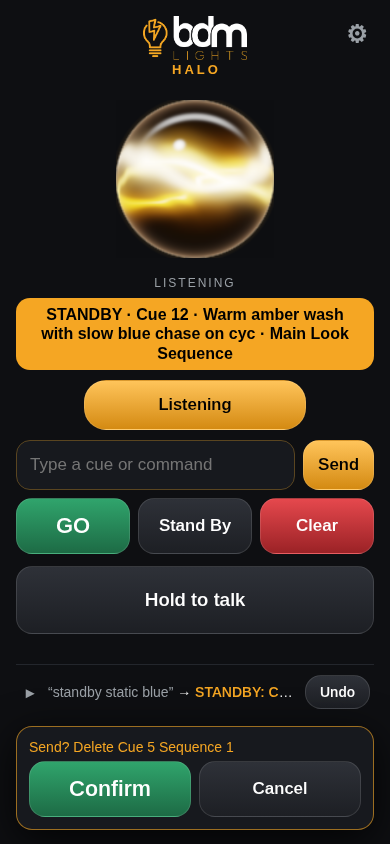
Hold to talk in the browser app on your phone. Same session, same cues as the console.
Sync & export
Rename a cue in grandMA3, sync, and call it by its new name. Export the cue list as PDF or CSV.
Why Halo
- Runs on your MacSpeech recognition runs locally. Your audio never leaves the computer.
- Matches your show exactlyHaloSync sends the cue names from the show that is open. Halo only fires cues that really exist, and never guesses.
- Never writes to your showThe plugin is read-only. It never stores, saves or edits anything in your show file.
- Stand by, then GoThe big amber STANDBY bar shows what is armed before you fire it, on the Mac and in the browser app on your phone or tablet.
- Call cues by nameSay a cue by its name or number, before or after the word Go.
- Safe by defaultHalo starts in Dry run, so nothing reaches the console until you turn it on.
- Cue TrackerAn optional window, off by default. See the current and next cue across several playing sequences, live from your show.
Halo in the browser
Turn on Phone remote in Halo's settings and open the browser app on a phone, tablet or laptop on the same network. It is off by default, works on your local network only and is protected by a PIN.
- Same voice commandsHold to talk and call cues the same way you do on the Mac, or type a cue or command.
- STANDBY cardThe amber STANDBY card shows what is armed before you press GO.
- Confirm or CancelCommands that need a check ask first, with Confirm and Cancel buttons.
- Cue Tracker panelTurn on the Cue Tracker panel in the settings sheet to see current and next cues.
Set up in five steps
- InstallOpen the BDM Halo disk image and drag Halo into Applications.
- Open it the first timeHalo is not notarized by Apple yet, so macOS asks once. macOS 15 Sequoia or later: double-click Halo, click Done, then System Settings > Privacy & Security > Open Anyway. macOS 14 or earlier: Control-click Halo > Open > Open. Step-by-step guide
- Import the HaloSync pluginCopy HaloSync.xml and HaloSync.lua from the MA3 Plugin folder into your grandMA3 plugins folder, then import HaloSync.xml into an empty Plugins pool slot.
- Connect to grandMA3In grandMA3 (Menu > In & Out > OSC) turn on Enable Input and add one line that receives Halo's commands: UDP port 8000, Receive and Receive Command on. In Halo set the console IP (127.0.0.1 when onPC runs on the same Mac) and port 8000. Same Mac: that is all, cue names come back automatically, so do not add a line back to Halo. Console on another computer: also add a send line to the Halo Mac on port 8001 and start the plugin with
Plugin "HaloSync" "osc=8001". - First syncRun
Plugin "HaloSync"in grandMA3 and press Sync now in Halo. Your cue names show up, ready to call. Turn off Dry run when you are ready to drive the console.
Full step-by-step instructions: Getting started, also in INSTRUCTIONS.txt inside the download. Questions: FAQ.
System requirements
- MacApple silicon (M1 or newer). Intel Macs are not supported.
- macOSmacOS 12 Monterey or later.
- grandMA3grandMA3 onPC 2.5 on the same Mac or another computer on your network, or a grandMA3 console on the same network.
- MicrophoneBuilt-in, headset, USB or an audio interface (including Dante Virtual Soundcard or SoundGrid). A wired mic is recommended.
- Disk spaceAbout 1.5 GB free. The speech models are included, so no internet is needed to run it.
Get Halo
Halo is free for Mac. No account, no license key, no subscription. A Windows version is coming later.
☕ Buy me a coffee